Math 326 – Adding Scroll Bars in Excel 2007
Scroll bars are a handy tool in Excel which allow you interactively update the data
in a particular cell with your mouse.
To
add a scroll bar, first we need to make scroll bars available, as they are not
included on the standard Excel 2007 ribbon.
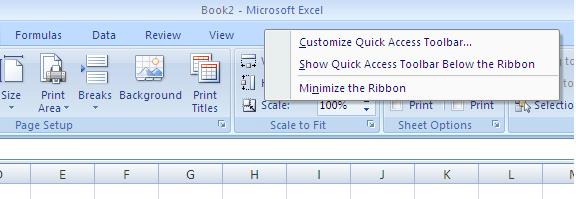
Begin by right-clicking next to the ribbon tabs, and choosing “Customize
Quick Access Toolbar”. Alternatively,
you can click on the Windows symbol, choose Excel Options, then select
“Customize” on the left side of the window that pops up.
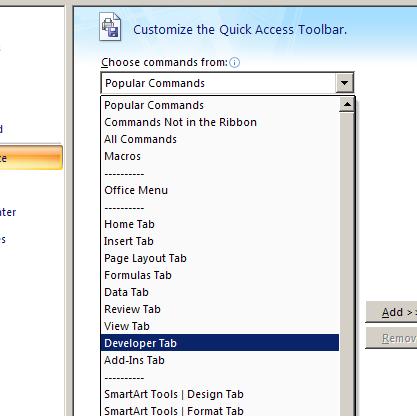
On
the left drop-down menu, choose “Developer Tab”.
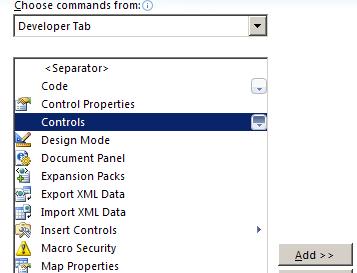
Select
“Controls” then click “Add”. Now close
the Excel Options window. There should
now be an icon at the top of the Excel Workbook window which you can click to
add a scroll bar.
To
add a scroll bar, click on your new “Controls” icon, click on “Insert” then
click on the scroll bar (far right of the first line under “Active X Controls”. There is also a scroll bar under “Form
Controls” but it isn’t as nice). Now
right on your spreadsheet, click and drag out a window which has the shape you
want your scroll bar to take (you can move and resize it too). Once the scroll bar is in place, right click
on it and choose properties. Enter the
cell the scroll bar will control next to “LinkedCell”. Enter the range of outputs in “Max” and “Min”;
note you can only enter integers between 0 and 32767, so no negative
numbers. One last step, to go back to
normal use of your spreadsheet you must exit “Design Mode”. Click on the “Controls” icon again, “Design
Mode” is now highlighted. Click on it to
shut Design Mode off.
The
output from a scroll bar is always the integers between your chosen min and
max. If you want decimals, bigger steps,
or negative numbers the easiest fix is to use another cell as a
middle-man. For example, suppose you
want your scroll bar to make cell A1 cycle from -1 to 1 in steps of 0.1 (that
is, -1, -0.9, -0.8, …, 0.9, 1). One way
to accomplish this is to enter A2 as
your linked cell, with a min and max of 0 and 20 in your scroll bar
properties. Now in cell A1 enter the
formula =A2*0.1-1. As A2 scrolls from 0
to 20, thank to the formula A1 will scroll from -1 to 1.